Welcome to the digital handout for the POURing Accessibility Into Action: Unlocking the 4 Principles session as presented at the Kentucky Association for Early Childhood Education’s KAECECON in September 2025. We like to provide materials this way so that we can continue to update the information and make changes as needed.
Presenters


Course outline
What are the POUR principles?
The original Web Content Accessibility Guidelines (WCAG) were published in May of 1999. The guidelines are maintained by the World Wide Web Consortium (W3C). The goal of WCAG is to explain what accessibility means, provide guidelines and criteria to make sure you are building accessible content, and to help creators succeed by giving advice on methods for making their stuff better.
According to WCAG, accessibility is defined by the four POUR principles. You can read their descriptions of the four POUR principles on the WCAG website, but here’s the list:
- Perceivable: Your audience can use their senses to take in your materials.
- Operable: People should be able to interact with your files or app no matter what device they use or what their abilities are.
- Understandable: Your content should be clear, predictable, and consistent.
- Robust: Follow best practices to make things compatible with different browsers and assistive technologies.
Perceivable

When you build materials that are perceivable, you present information in ways that can be used and recognized no matter what senses they use or how they consume content.
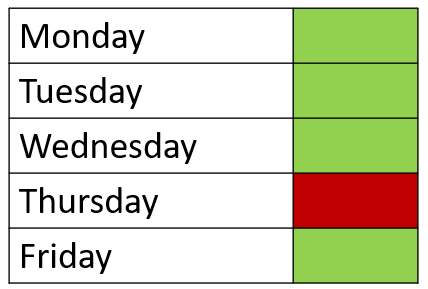
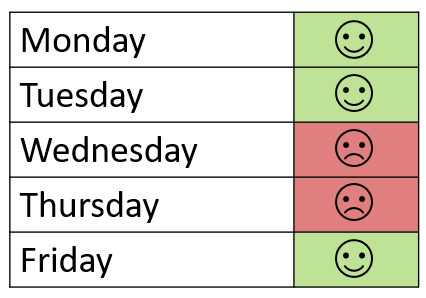
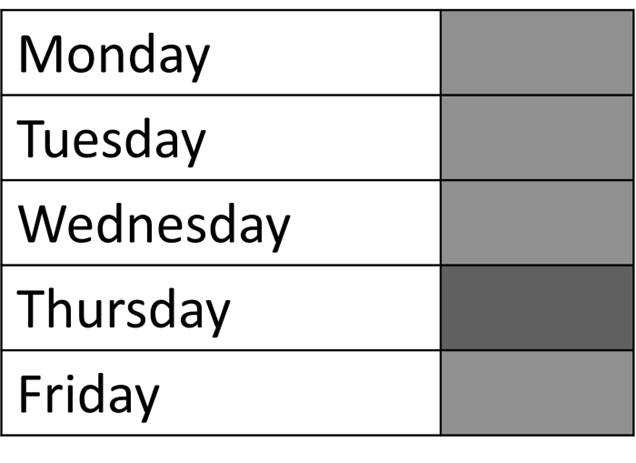
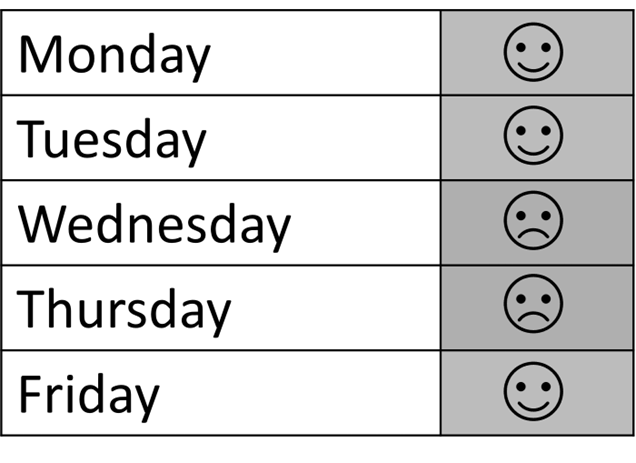
Think about ways your materials might be used. For example, imagine one member of the audience is colorblind. Or say you are sharing things with office workers; they might not be able to print things in color. This is why you shouldn’t use color alone to share! Check out this example:
Operable

In operable content, controls and information are easy to navigate and use, no matter how someone interacts with it.
You just can’t predict who is going to use the things you create. You need to check to make sure that you aren’t leaving folks out! Here are a couple of examples of bad operability:
- An online job application with a Next button to click that is not accessible with the keyboard
- A game that won’t work without a touch screen
- A computer program with complicated keyboard shortcuts. For example, Windows users with Office can press
Ctrl + Alt + Shift + Win + W
Understandable

Understandable content makes it easy for people to understand information and how to complete tasks.
Your content should be easy and comfortable to find. Users should be able to figure out what you are going for by looking for familiar patterns. Try to use simple terms. When possible, don’t use a lot of idioms or expressions. When you are talking to families, limit and explain your use of:
- Technical jargon (decoding, processing, neurodivergent)
- Specialized vocabulary (IEP, All STARS, 504 plan)
- Abbreviations (NAEYC, ECERS-R, KAECE)
Robust

If your content is robust, it is accessible across software and devices. It should work reliably now and in the future, even as technology changes.
The best way to make sure your materials are robust is by testing them! Try accessing your center’s website on a desktop PC, a tablet, and your mobile phone. What does the page look like? How does the layout change on different screens? Do you lose some information?
You can use tools like the PDF Accessibility Checker to help find technical accessibility challenges. You can also use your browser’s developer tools to emulate other devices. Use this cool DevTools guide from Computer Hope for help accessing yours. If you build a lot of public content for your team, test it with a few major browsers (like Chrome, Edge, and Firefox) to make sure it doesn’t break!
Further reading
- POUR Principles | accessibility.umich.edu
- Accessibility Principles – Accessibility Toolkit for Open Educational Resources (OER) – Library Guides at CUNY Office of Library Services
- Understanding the 4 principles of accessibility | IU Libraries Blogs
- Accessibility Principles | Web Accessibility Initiative (WAI) | W3C